Superintendent Guide
Confirm Attending Workflow
This guide walks you through how attending confirmations work for publishing rosters to confirm attendance. From the moment you publish a roster through to finding cover for anyone who declines or does not respond. Every step is initiated or monitored by you as the Superintendent. Users confirm activities with WhatsApp and emails confirm when activities are finalised.
Your action
Decision
Confirmed
Declined / expired
Automatic
WhatsApp
Email
Step 1: Publish the Roster
1Publish your roster
Click Publish on the roster. A dialog opens where you can set how far in advance crew are messaged, whether to send a reminder, and when the response window closes.
?Send messages now?
A toggle in the dialog: “Send confirm attending messages on publish”. You choose whether messages go out straight away or later.
ON: Send Now
2aMessages sent to crew
WhatsApp
Every crew member with a mobile number receives a WhatsApp asking them to confirm they are attending their upcoming swing. The dialog shows how many will be messaged before you confirm.
Every crew member with a mobile number receives a WhatsApp asking them to confirm they are attending their upcoming swing. The dialog shows how many will be messaged before you confirm.
⏱Reminder and expiry scheduled
The system automatically queues a reminder (if you enabled it) and an expiry timer for each crew member based on your settings.
OFF: Send Later
2bRoster published, no messages yet
The roster is live but nobody gets messaged. Use this when you are still finalising rosters early in the quarter.
→Send when ready
Open the Confirm Attending panel on the roster grid. Send to everyone at once with the bulk button, or use the individual Send button next to each crew member's name.
Step 2: Crew Responds
3Crew receives the message
WhatsApp
Each crew member gets a message asking them to confirm they are attending. They reply YES or NO.
Each crew member gets a message asking them to confirm they are attending. They reply YES or NO.
Replies YES
✓Confirmed
Crew member is marked as attending. No further action needed for this person.
Confirmed
Replies NO
✗Declined
Crew member will not be attending. A backfill request is automatically created for their swing dates.
DeclinedBackfill sent
✉You are notified immediately
WhatsApp Email
You receive a WhatsApp and email telling you who declined, which swing, and that a backfill request has been created.
You receive a WhatsApp and email telling you who declined, which swing, and that a backfill request has been created.
No reply
⏱Reminder sent (if enabled)
WhatsApp
If the crew member has not replied, they get a follow-up message at the time you set in the reminder settings.
If the crew member has not replied, they get a follow-up message at the time you set in the reminder settings.
⏱Response window closes
If there is still no reply after the expiry time you set, the crew member is marked as expired. They can still reply YES later (see Step 4).
ExpiredNeeds cover
Step 3: Summary Email
?Has everyone responded or expired?
Once every crew member on the roster has either replied or had their window close, the system sends you a single summary email.
✉Summary email sent to you
Email
Subject: “Upcoming swing attending to address: Q3 2026 Roster”
Declined (backfill in progress) lists crew who replied NO, showing whether a backfill has been sent or is still awaiting action.
Did not respond (action needed) lists crew whose window closed without a reply.
Includes a View Roster button that takes you straight to the roster in your dashboard.
Subject: “Upcoming swing attending to address: Q3 2026 Roster”
Declined (backfill in progress) lists crew who replied NO, showing whether a backfill has been sent or is still awaiting action.
Did not respond (action needed) lists crew whose window closed without a reply.
Includes a View Roster button that takes you straight to the roster in your dashboard.
Step 4: Review and Take Action
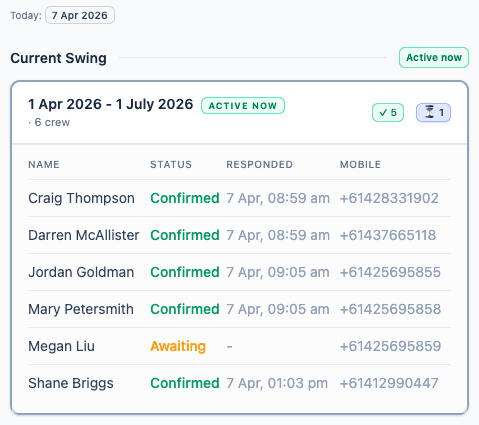
4Confirm Attending panel
Open the panel from the roster grid toolbar. Every crew member shows their current status at a glance:
ConfirmedAwaitingDeclinedExpiredNot sent
Backfill sentCover foundNeeds coverBackfill cancelled
Find Cover
5a“Find Cover” button
For any crew member who declined or did not respond, click Find Cover next to their name. This opens the backfill panel with their swing dates and shift already filled in (you can still change them).
→Backfill flow
WhatsApp
Click Find Available to see eligible crew on R&R or standby. Select who to contact, then send offers. First person to accept gets the swing and is added to the roster.
Click Find Available to see eligible crew on R&R or standby. Select who to contact, then send offers. First person to accept gets the swing and is added to the roster.
Late YES
✓Crew confirms after window closed
If a crew member replies YES after their window expired, the system accepts it: marks them confirmed and cancels the backfill (if nobody has been contacted yet). If offers were already sent, the backfill stays open for you to manage.
✉You are notified
WhatsApp Email
You receive a message letting you know the crew member has now confirmed attending.
You receive a message letting you know the crew member has now confirmed attending.
Your Send Options
AFull send on publish
Toggle ON in the publish dialog. Every crew member with a mobile number gets messaged as soon as you publish. Best when the roster is final.
BPublish now, send later
Toggle OFF in the publish dialog. Roster goes live with no messages. Use this when you are still working through early drafts for the quarter. Send to everyone later from the panel when you are ready.
CSend to one person at a time
In the Confirm Attending panel, each crew member showing “Not sent” has a Send button. Click it to message that one person only. Good for testing or staggered rollouts.